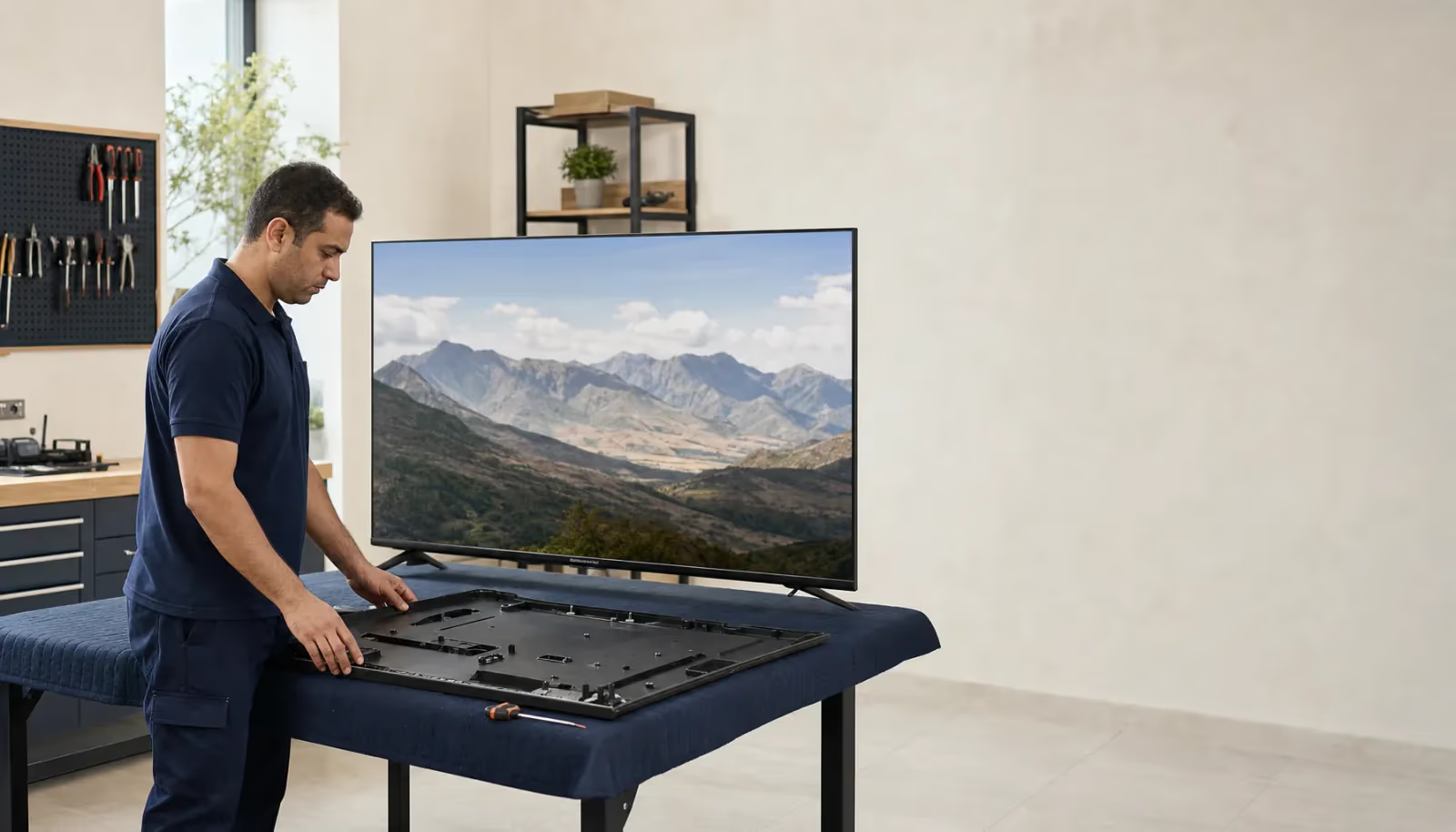
A large flat screen television standing securely upright on a padded service bench in a neat electronics workshop
Calls 24h · Visits 9 AM–9 PM

TV Repair in Egypt

LED, OLED, QLED and Smart TV repair with documented warranty

6-month written warranty on the repair and the replaced part

Agent Site is an independent repair center — not the manufacturer's authorized service or warranty provider.

Written warranty6 months
Formal invoiceOn every visit
Spare partsOriginal or compatible
Visit hoursVisits 9 AM–9 PM

Repair and installation for LED, OLED, QLED and Smart TVs from all popular brands: the backlight, the panel, the main board, the power board, and Android TV, webOS and Tizen software — with a 6-month written warranty.

TV Repair Services

From the panel to the power board, from the backlight to the operating system — every TV fault, with a written warranty.

Book a service

Fault Repair

Accurate diagnosis: no picture, lines on the screen, a dim picture, no sound, burnt-out backlight LEDs or a failed power board.

See common faults
New TV Installation

Wall-mount installation with power, HDMI and internet hookup — plus a full test run.

Smart TV Setup & Updates

Software updates and reflashing for Android TV, webOS and Tizen — plus app setup and activation.

Internal Dust-Spot Cleaning

If dust spots show inside the screen (between the backlight and the panel), the technician assesses whether they can be cleaned safely. Dead pixels usually cannot be repaired.

TVs in Shops & Cafes

If the TV is in a shop, cafe or office, inspection and repair work the same way: a written price before any work and a 6-month written warranty on the repair.

Shops & offices

Original or Compatible Parts

LED backlight strips, power boards, main boards, T-Con boards and remotes — and we tell you the part type (original or compatible) before fitting it.

TV Types We Service

Each panel technology has its own faults and repair approach.

TVs service areas

We cover Cairo, Giza, Qalyubia, Alexandria, Matrouh (North Coast), Sharqia, Gharbia, Dakahlia. Not sure about your area? Call 16062 and we confirm before booking.

  • Cairo
  • Giza
  • Qalyubia
  • Alexandria
  • Matrouh (North Coast)
  • Sharqia
  • Gharbia
  • Dakahlia

Common TV Faults

Before calling, check whether your problem is listed below — each fault has its likely causes and safe checks you can do.

Black screen with sound

Medium Black screen but the sound still works? Usually the backlight has failed. A simple torch test and when to call a technician.

If the screen is black but you can still hear sound, the backlight is the usual suspect — either the LED strips themselves or the driver that powers them. A quick test: play a channel and shine a phone torch close to the screen. If you can make out a faint picture, the backlight is the cause, and the fix is usually new LED strips.

Symptoms

  • The screen is completely black with no light
  • Sound works normally
  • The power light is on
  • You can change channels and hear the difference
  • A faint picture shows under a strong torch
  • A very faint glow in one corner of the screen

Likely causes

  1. Burnt-out backlight LEDs (the most common cause)
  2. The power board is not supplying the backlight
  3. A faulty LED driver (on the power board or a separate board)
  4. A backlight connector has come loose inside
  5. A blown backlight fuse on the power board

Safe checks before you call a technician

  1. Torch test Put a channel on and shine a bright phone torch close to the screen. If you can see a faint picture, the backlight is the cause.
  2. Power cycle Unplug the TV, wait a minute and plug it back in. Sometimes this clears a software glitch.

When to stop and call a technician

  • The torch test points to the backlight
  • The screen stays completely black with no faint picture at all
  • You heard electrical crackling before it failed — unplug it and leave it off
Call now 16062

TV types where this fault is common: LED TVQLED TVSmart TV

No sound from TV

Simple Picture but no sound from the TV speakers? Start with the sound settings and audio output before any technical check.

A sound problem can be simple — a wrong setting, or audio going to another device — or a fault in the speakers or the audio circuit. Start with the sound settings before anything else.

Symptoms

  • No sound at all
  • Sound cuts out, then comes back
  • Sound from one speaker only
  • Crackling or distorted sound
  • Sound works in one app but not in another
  • Very low volume even when turned right up

Likely causes

  1. Mute is on or the volume is at zero
  2. Audio output switched to Bluetooth or HDMI ARC
  3. Faulty internal speakers
  4. A fault in the audio circuit on the main board
  5. Wrong sound settings inside an app
  6. An internal speaker connector has come loose
  7. Wrong audio output setting on the external device (receiver or TV box)

Safe checks before you call a technician

  1. Sound settings Go to Settings → Sound → Sound Output and make sure it is set to TV Speakers, not Bluetooth or HDMI. Then turn the volume up to a medium level.
  2. Try another source Try a different channel, a USB stick or another HDMI input. If sound works from one source, the problem is with the original source, not the TV.
  3. Reset sound settings In the sound settings, choose Reset. This returns only the sound settings to default — where to find it varies by brand.

When to stop and call a technician

  • Resetting the sound settings did not help
  • You heard a pop before the sound disappeared
  • Only one speaker works
  • The distortion stays on every source
Call now 16062

TV types where this fault is common: LED TVOLED TVQLED TVSmart TV

Lines on screen

Technician Vertical or horizontal lines on your TV screen? Likely causes, possible repairs and when a repair is worth it.

Lines on the screen are a common fault and often a tricky one. Sometimes the fix is simple (a loose ribbon cable); sometimes it is expensive (the T-Con board or the panel itself). Diagnosis decides which.

Symptoms

  • One or more permanent vertical lines
  • Many horizontal lines
  • A line that changes colour (red, blue, green)
  • Lines that come and go
  • Half of the screen shows lines while the other half works normally
  • Thin lines rolling from top to bottom

Likely causes

  1. A loose ribbon cable between the T-Con board and the panel
  2. A faulty T-Con board (often behind many horizontal lines)
  3. A dead line in the panel itself (usually not repairable)
  4. A damaged COF strip (the driver chip on the panel edge)
  5. A power surge that damaged part of the panel

Safe checks before you call a technician

  1. Photograph the lines Take a photo of the lines and note their direction (vertical or horizontal), colour and number. It helps the technician diagnose the fault.
  2. Try another input Switch the input (HDMI, USB, antenna) and open the TV's own menu. If the lines show on every input and on the menu, the fault is in the TV; if only on one input, the fault is with that source.

When to stop and call a technician

  • The lines appear on every input
  • The lines are spreading over time
  • The TV fell or was knocked before the lines appeared
  • Half of the screen works and the other half shows lines
Call now 16062

TV types where this fault is common: LED TVOLED TVQLED TVSmart TV

Dim screen

Medium Picture still dim with the brightness turned up? Either an energy-saving setting is on, or the backlight is starting to fail.

A dim picture is not always a fault — often an energy-saving mode or the light sensor is turned on. If the settings are right and the picture is still dim, the backlight is probably starting to fail.

Symptoms

  • The picture stays dim even at maximum brightness
  • Brightness has faded gradually over time
  • Dim in dark scenes but normal in bright ones
  • One corner is dimmer than the rest
  • A clear drop in brightness after years of use

Likely causes

  1. An energy-saving mode (Eco Mode / Energy Saving) is on
  2. Backlight LEDs weakening with use
  3. Local dimming set to its highest level
  4. The ambient light sensor is on or faulty
  5. The LED driver is not supplying enough power
  6. Pixel ageing on OLED TVs after years of use

Safe checks before you call a technician

  1. Picture settings In the picture settings, turn off Eco Mode and Energy Saving, then raise the brightness. Menu names vary by brand.
  2. Turn off the light sensor Turn off the ambient light sensor feature (Ambient Light Detection or Eco Sensor) — it lowers the brightness automatically.

When to stop and call a technician

  • The settings are correct but the picture is still dim
  • Only one corner is dim
  • The backlight flickers or keeps going dark and coming back
Call now 16062

TV types where this fault is common: LED TVQLED TVSmart TV

TV won't turn on

Technician TV not responding at all and the standby light is off? Usually the power board or a fuse. Safe checks and when to call a technician.

A TV that shows no sign of life (not even the standby light) usually has a power-board fault — swollen capacitors or a blown fuse — and sometimes a main-board fault. Finding the cause means opening the TV, so leave it to a technician: the power-board capacitors can stay charged even after unplugging.

Symptoms

  • No response when you press the power button
  • The standby light is off
  • You heard a pop before the TV shut off
  • The TV shut off on its own and will not come back on
  • A faint burning smell
  • The home circuit breaker tripped

Likely causes

  1. Swollen or burst capacitors on the power board (the most common cause)
  2. A blown fuse on the power board
  3. A faulty standby circuit on the main board
  4. An internal power connector has come loose
  5. A strong power surge that damaged the power board
  6. A burnt transformer on the power board

Safe checks before you call a technician

  1. Check the socket Test the socket with another appliance, and if the TV's power cable is detachable, try one you know works. If the TV is on an extension lead or a stabiliser, try it straight in the wall socket.
  2. Hard reset Unplug the TV, press and hold the power button on the TV itself (not the remote) for 30 seconds, then plug it back in.

When to stop and call a technician

  • These checks did not help
  • You heard a pop before it failed
  • You smell burning — unplug it and leave it off
  • The home breaker trips when the TV is plugged in
Call now 16062

TV types where this fault is common: LED TVOLED TVQLED TVSmart TV

Remote not working

Simple Remote not responding, or only sometimes? Usually the batteries. A phone-camera test and how to re-pair a smart remote.

Remote problems are usually simple: weak batteries or something blocking the TV's sensor. If the batteries are fine, the fault may be in the remote itself, in the pairing of a smart (Bluetooth) remote, or occasionally in the TV's remote sensor or Bluetooth module.

Symptoms

  • No response at all
  • Responds only after several presses
  • Some buttons work and others do not
  • Works only from close up

Likely causes

  1. Weak batteries (the most common cause)
  2. Batteries fitted the wrong way round
  3. The remote sensor on the TV is covered or dirty
  4. A smart (Bluetooth) remote that needs re-pairing
  5. The remote itself was damaged in a fall
  6. Strong lighting or direct sunlight on the TV's sensor
  7. A faulty Bluetooth module or remote sensor in the TV (rare)

Safe checks before you call a technician

  1. New batteries Fit new alkaline batteries and check the + and − marks.
  2. Phone camera test Open your phone camera, point the remote at it and press any button. If a light flickers at the tip of the remote on the phone screen, the remote is sending a signal; if nothing shows, try the front camera before concluding. (This test is for standard infrared remotes.)
  3. Re-pair a smart remote Re-pairing differs by brand — for example, on a Samsung Smart Remote, hold Return and Play/Pause together for 3 seconds while pointing it at the TV. Check your model's manual.
  4. Clean the TV sensor Wipe the remote sensor on the front of the TV with a dry cloth and remove anything covering it (a sticker, dust, or a device in front of it).

When to stop and call a technician

  • Nothing above has worked
  • The remote is fine (the light shows on the camera) but the TV still does not respond
  • The smart remote will not pair even after following the brand's steps
Call now 16062

TV types where this fault is common: LED TVOLED TVQLED TVSmart TV

Wi-Fi not connecting

Simple Smart TV won't connect to Wi-Fi or keeps dropping? Checks from the router to the settings before you suspect the TV.

Wi-Fi trouble on a smart TV comes from one of three places: the router, the network settings, or the TV's Wi-Fi module. Start with the simplest — the TV's module is the last suspect.

Symptoms

  • The TV cannot find the Wi-Fi network at all
  • It finds the network but rejects the password
  • It connects, then drops soon after
  • Very weak Wi-Fi signal
  • Video keeps buffering
  • Certain apps will not open

Likely causes

  1. The router is too far away or the signal is weak
  2. The Wi-Fi password is wrong or has changed
  3. The router broadcasts on 5 GHz only and an older TV supports 2.4 GHz only
  4. A faulty Wi-Fi module in the TV
  5. The TV software needs updating
  6. A MAC address filter on the router
  7. An IP address conflict

Safe checks before you call a technician

  1. Restart the router and TV Unplug the router and the TV for a minute, then plug them back in. This fixes many connection problems.
  2. Forget and re-join In the TV's network settings, select the network, choose Forget, then join it again and re-enter the password.
  3. Signal and 2.4 GHz Test the Wi-Fi on your phone next to the TV — if it is weak there too, move the router closer. If the TV is older, make sure the router also broadcasts on 2.4 GHz, not just 5 GHz.
  4. Try an Ethernet cable If the TV has a network port, connect it to the router with a cable. If the cable works but Wi-Fi drops even right next to the router, then the Wi-Fi module needs checking.

When to stop and call a technician

  • Ethernet works but Wi-Fi drops even next to the router
  • The TV cannot see any Wi-Fi network at all
  • The problem started after a software update and the steps above did not fix it
Call now 16062

TV types where this fault is common: Smart TVLED TVQLED TVOLED TV

Apps crashing

Simple Netflix, YouTube or other apps closing on their own? Often full storage or an app that needs updating. Clean-up steps in order.

Apps that close suddenly are often caused by a full cache or full internal storage, or by an app that needs updating. Cleaning up and updating usually fixes it without any repair.

Symptoms

  • An app closes seconds after opening
  • The TV jumps back to the home screen on its own
  • Apps are very slow to load
  • A "Not enough storage" message
  • One app works but another will not open
  • App updates fail

Likely causes

  1. A full app cache
  2. Internal storage full of apps and files
  3. An app update that does not support the TV's older software
  4. An app installed from an unknown source (APK)
  5. TV hardware (processor and memory) too weak for newer app versions
  6. A conflict between two apps
  7. Malware (on Android TVs)

Safe checks before you call a technician

  1. Clear the cache Go to Settings → Apps, select the app and choose Clear Cache. Start with the apps that crash.
  2. Remove unused apps Uninstall apps you don't use to free up space and lighten the load on the TV.
  3. Update the software Run a software update from the settings — updates fix many bugs. Don't unplug the TV during the update.
  4. Factory reset (last resort) If nothing else works: Settings → Reset → Factory Reset. This erases the settings, apps and signed-in accounts on the TV — have your account passwords ready first. It usually fixes software-related problems.

When to stop and call a technician

  • A factory reset did not fix it
  • The TV is very slow even in its menus
  • You suspect malware (Android TV)
Call now 16062

TV types where this fault is common: Smart TVLED TVQLED TVOLED TV

Wrong colors

Medium Colours look wrong, patchy or tinted? Start with the picture settings before suspecting the panel.

Colour problems range from the wrong picture mode (the simplest) to a damaged panel (the hardest). The right diagnosis can save you a lot of money.

Symptoms

  • A colour tint across the whole screen (pink, blue, green)
  • An odd colour patch in one corner
  • Faded, washed-out colours
  • Colour differs from one side of the screen to the other
  • The picture looks washed out or over-bright
  • Whites look grey

Likely causes

  1. An unsuitable picture mode (Vivid or Game)
  2. Colour/tint settings have been changed
  3. A faulty ambient light sensor
  4. The colour temperature is set wrong
  5. Backlight bleeding on LED TVs
  6. Burn-in or damaged pixels on OLED TVs
  7. A damaged quantum-dot layer on QLED TVs

Safe checks before you call a technician

  1. Change the picture mode In the picture settings, choose Standard or Movie. Avoid Vivid (exaggerated colours), and Game mode unless you are gaming.
  2. Reset the picture In the picture settings, choose Reset to return all picture settings to default.
  3. Colour temperature In the advanced picture settings, set Colour Temperature to Warm or Standard. Cool gives an unnatural blue picture.

When to stop and call a technician

  • Resetting the picture did not help
  • There is an odd colour patch in a corner
  • You notice burn-in on an OLED TV
  • Colours change when the screen is touched — don't press on it
Call now 16062

TV types where this fault is common: LED TVOLED TVQLED TVSmart TV

Screen flickering

Technician Screen flickering fast or slowly? Motion settings, an HDMI cable or the power board — and when to unplug it and call a technician.

Flicker can come from a setting or a cable, but if it shows on every input it usually points to an electrical fault inside the TV — in the power board or the LED driver. It is best checked early, before the damage spreads.

Symptoms

  • Constant fast flicker
  • Slow pulsing between bright and dark
  • Flicker only in a particular app
  • Flicker getting worse over time
  • Flicker stops after switching off and on again
  • A faint buzzing along with the flicker

Likely causes

  1. Swollen capacitors on the power board (the most common cause)
  2. The LED driver supplying an unstable current
  3. An unsuitable refresh-rate setting
  4. Mains voltage fluctuations at home
  5. A damaged HDMI cable (if the flicker is from one source only)
  6. Motion smoothing or energy-saving settings
  7. A T-Con board fault

Safe checks before you call a technician

  1. Refresh rate If your TV has the option, try fixing the refresh rate at 50 Hz or 60 Hz instead of Auto.
  2. Turn off motion smoothing In the picture settings, turn off motion smoothing (the name varies by brand) — it causes flicker on some TVs.
  3. HDMI cable If the flicker happens only on HDMI, try another cable that you know works.

When to stop and call a technician

  • The flicker shows on every input
  • You hear buzzing with the flicker
  • The flicker is getting worse
  • You smell burning — unplug the TV and leave it off
Call now 16062

TV types where this fault is common: LED TVQLED TVOLED TVSmart TV

Cracked screen

Technician LCD or OLED screen cracked by a knock? How to handle it safely, and when a repair is — or isn't — worth it.

A cracked screen is a tough call: in most cases replacing the panel costs close to a new TV, and the technician will tell you the economical option once they have seen it. Until then, unplug it and don't switch it on.

Symptoms

  • A visible crack in the screen
  • A black or coloured patch where it was hit
  • Lines spreading from the point of impact
  • Part of the picture works and part does not
  • No picture on the side of the crack
  • The crack is spreading over time

Likely causes

  1. A direct hit from a hard object
  2. The TV fell off its stand
  3. A toy or remote thrown at it
  4. Pressure on the screen (someone fell against it)
  5. Cleaning too hard with a brush or by pressing
  6. A sudden, extreme temperature change

Safe checks before you call a technician

  1. Unplug it and record the damage Unplug the TV and don't switch it on until a technician has seen it; watch out for any broken glass. Photograph the crack clearly and note the model, size and year — the technician needs these to assess it.
  2. Don't clean the crack Don't clean or press on the crack — any pressure can make it spread.

When to stop and call a technician

  • Any crack: have a technician assess it before switching the TV on
  • Don't attempt a repair yourself
Call now 16062

TV types where this fault is common: LED TVOLED TVQLED TVSmart TV

HDMI no signal

Simple Connected an HDMI device (receiver, console) and the TV says "No Signal"? The checks, in order.

An HDMI "No Signal" message is usually easy to fix: a cable, a setting, or an encryption handshake (HDCP) problem between the device and the TV. Work through the checks in order.

Symptoms

  • The TV shows "No Signal" or "No Source"
  • Black screen when you select the HDMI input
  • The picture appears for a moment, then disappears
  • Sound but no picture over HDMI
  • A garbled picture or strange colours
  • Some HDMI ports work and others do not

Likely causes

  1. A damaged or low-quality HDMI cable
  2. The external device is off or in standby
  3. A faulty HDMI port on the TV
  4. An encryption (HDCP) handshake failure between the device and the TV
  5. A cable longer than about 5 m without a signal booster
  6. Wrong output settings on the external device
  7. The device is sending a resolution or refresh rate the TV doesn't support (e.g. 4K to a Full HD TV)

Safe checks before you call a technician

  1. Change the cable Try an HDMI cable you know works (High Speed or newer). Old or poor-quality cables cause many problems.
  2. Try another port Plug the cable into a different HDMI port on the TV. If it works, the first port is probably faulty.
  3. Power-cycle both Unplug the device and the TV for a minute. Turn the device on first, then the TV — this restarts the HDCP handshake.
  4. Check the device Make sure the device (receiver, PlayStation, laptop) is on, and try it on another TV.

When to stop and call a technician

  • None of the HDMI ports work
  • You changed the cable and the problem remains
  • The device works on another TV but not on yours, on any port
Call now 16062

TV types where this fault is common: LED TVOLED TVQLED TVSmart TV

TV stuck in boot loop

Technician TV keeps restarting without reaching the menu? The power board, the software or the main board. Safe steps and when to call a technician.

A boot loop means the TV tries to start but shuts down before reaching the menu. The cause is usually a weak power board or software corrupted by a failed update, and the fix usually needs a technician.

Symptoms

  • The brand logo appears, then the TV switches off
  • The power light flashes on and off
  • The TV restarts over and over
  • It never reaches the home screen
  • The remote does nothing because the TV never finishes starting
  • A click with each restart attempt

Likely causes

  1. The power board cannot supply enough current to start up
  2. Software corrupted by a failed update
  3. A swollen capacitor on the main board
  4. Damaged internal storage
  5. A harmful app or APK file (Android TV)
  6. A power surge that damaged a component

Safe checks before you call a technician

  1. Long unplug Unplug the TV for at least 10 minutes, press the TV's own power button a few times while it is unplugged, then plug it back in.
  2. Safe mode Some Android TVs have a safe mode or recovery menu, but the way in differs by brand — check your model's manual or call us before trying, because the recovery menu includes options that wipe the TV.

When to stop and call a technician

  • These steps did not help
  • The loop started after a software update
  • You hear an odd noise from the TV
  • There is a burning smell — unplug it straight away
Call now 16062

TV types where this fault is common: Smart TVLED TVQLED TVOLED TV

TV turns off by itself

Medium TV switching itself off? A sleep timer, overheating from poor ventilation, or the power board.

A TV that turns itself off may have a simple cause (a sleep timer) or a more serious one (overheating or the power board). Check in order.

Symptoms

  • It switches off after a fixed time (half an hour, an hour)
  • It switches off once it warms up
  • It switches off at random
  • It switches off, then back on by itself
  • It only switches off in a particular app
  • It switches off when the volume goes up

Likely causes

  1. The sleep timer is on
  2. Auto Power Off (an energy-saving feature) is on
  3. Overheating from poor ventilation
  4. A power-board fault
  5. Voltage fluctuations triggering the TV's protection
  6. An energy-saving mode that switches off when idle
  7. A software bug

Safe checks before you call a technician

  1. Turn off timers In the settings, turn off Sleep Timer and Auto Power Off (the names vary by brand).
  2. Check ventilation Leave at least 10 cm between the TV and the wall and remove anything sitting on top of it. With the TV unplugged, dust the rear vents with a dry cloth — without removing any covers.
  3. Try another socket Plug the TV into a different socket. If it stops switching off, the first socket or that circuit probably has voltage fluctuations.

When to stop and call a technician

  • The settings are correct but it still switches off
  • The TV is very hot to the touch
  • You smell burning — unplug it
  • It switches off seconds after turning on
Call now 16062

TV types where this fault is common: LED TVOLED TVQLED TVSmart TV

Burn-in (image retention)

Technician A ghost of a static image on an OLED TV? The TV runs a pixel refresher on its own — if the ghost stays, it is likely permanent burn-in.

Burn-in is a ghost of a static image that stayed on screen for a long time (a channel logo, a news ticker, a game HUD). On an OLED, permanent burn-in cannot be repaired, but temporary image retention can fade with the pixel refresher, which the TV runs on its own after you switch it off.

Symptoms

  • A faint ghost of a channel logo in a corner
  • Remnants of a game HUD
  • A ghost of a menu that was left on screen a lot
  • Patches most visible on grey backgrounds
  • Patches remain after changing the channel
  • Patches stay even at high brightness

Likely causes

  1. A static image displayed for hours (OLED)
  2. Using an OLED TV as a computer monitor with the same layout
  3. Watching a channel with a fixed logo for hours every day
  4. Long gaming sessions with a static HUD
  5. Brightness set to maximum all the time
  6. Cutting the power at the wall right after switching off, so the automatic refresh never runs

Safe checks before you call a technician

  1. Pixel refresher The TV runs the refresher by itself after you switch it off with the remote — leave it on standby and don't cut the power. If the ghost is still there, run it manually once from the panel care settings (OLED Care or Panel Care — the name varies by brand); it takes about an hour.
  2. Screen shift Turn on Screen Shift (or Pixel Shift) — it moves the image very slightly to reduce future burn-in.
  3. Lower the brightness If the TV is on for hours every day, turn the brightness down a little rather than leaving it at maximum.

When to stop and call a technician

  • The ghost remains after a manual refresh — it is likely permanent burn-in; call us to assess repair or replacement
  • The burn-in is spreading quickly
  • For advice on whether to replace the TV
Call now 16062

TV types where this fault is common: OLED TV

How We Repair Your TV

5 clear steps from the first call to the written warranty.

  1. 01

    Call or WhatsApp

    Reach us on 16062 or WhatsApp 01050887010.

  2. 02

    Your visit is scheduled

    A technician visits at the earliest available slot for your area — visits run daily from 9 AM to 9 PM.

  3. 03

    Diagnosis + Written Quote

    Diagnosis with a multimeter and board testing, followed by a written quote set after inspection.

  4. 04

    Repair with Original or Compatible Parts

    LED strips, power boards and main boards from trusted suppliers.

  5. 05

    6-Month Written Warranty

    Formal invoice + a 6-month written warranty on the repair and the replaced part. If the same fault comes back within that period, the warranty covers it.

Book your tv service

at the earliest available slot for your area

  • 6-month written warranty on the repair and the replaced part
  • Technician visits daily from 9 AM to 9 PM
Call now16062

Your service details

We save your request and call you to confirm the appointment; WhatsApp opens with the details too.

Why Agent Site for TV Repair?

What to expect from our service.

9–9daily

Fixed Visit Hours

Technician visits daily from 9 AM to 9 PM, and the 16062 hotline answers around the clock to book your earliest slot.

6-Month Written Warranty

A formal invoice and a written warranty on the repair and the replaced part.

Every Panel Type

We repair LED, OLED, QLED and Smart TVs, and the technician explains the fault before any repair.

10+ brands

All Popular Brands

Samsung, LG, Toshiba, Sharp, Sony, Hisense, Haier, Fresh, Panasonic, TCL and more.

Transparent Pricing

The price is written and shared before any work begins.

7days

Full-Week Service

Visits all week — including Fridays and holidays, with a 24-hour hotline.

Pricing Transparency

The first question on every customer's mind — here's our straight answer.

Our clear policy

Price is set after technical inspection

There's no fixed price for any fault before the technician sees the TV. Replacing an LED strip isn't the same as replacing a panel, and repairing a main board isn't the same as repairing a power board — every fault needs different spare parts.

  • Technician diagnoses with instruments — not by sight
  • Written cost: spare part + technician labour
  • You decide — no obligation
  • The quoted price = the invoiced price
Calls 24h

Need a cost idea before the visit?

Call 16062 or WhatsApp — describe the problem and we explain the likely fix before the visit.

Call now WhatsApp — 01050887010

Frequently Asked Questions

The questions that come to mind before requesting TV repair.

How much does TV repair cost?

The cost is set after the technical inspection — a written price before any work begins.

What is the response time?

Visits run daily from 9 AM to 9 PM, at the earliest available slot for your area. Call 16062 (the line answers around the clock) and we will book your visit.

Do you service every TV brand?

Yes — the popular international and local brands: Samsung, LG, Toshiba, Sharp, Sony, Hisense, Haier, Fresh, Panasonic, TCL and others — with original or compatible parts, depending on the part and model.

Do you service OLED and QLED TVs?

Yes — we repair modern panels, main boards and T-Con boards. See OLED TV repair and QLED TV repair.

Do you handle wall-mount installation?

Yes — wall-mount installation with all power and signal hookups.

Is there a warranty?

A 6-month written warranty on the repair and the replaced part.

My screen shows lines — can it be fixed?

Yes — lines usually point to a fault on the T-Con board or in the panel itself. Repair is possible as long as the panel isn't cracked. Details under "lines on screen".

My Smart TV is very slow — can you tune it?

Yes — updating the software, clearing the cache, and reflashing Android TV, webOS or Tizen if needed.

The remote isn't working — can you fix it?

Yes — battery replacement, remote-sensor repair, or sourcing an original or compatible replacement remote.

Do you service TVs in cafes and hotels?

Yes — inspection and repair work just as they do for home TVs: a written price before any work and a 6-month written warranty on the repair.

What is the average lifespan of a TV?

Lifespan depends on the model, the viewing hours and protection from power surges and heat — the key is to notice a weakening backlight or image retention early.

Hotline 16062 answers calls around the clock

TV not working?

A TV technician at the earliest available slot, diagnosis with a clear price, and a 6-month written warranty.

← All devices